
Development
Use an iPhone Passkey to Sign In on Linux
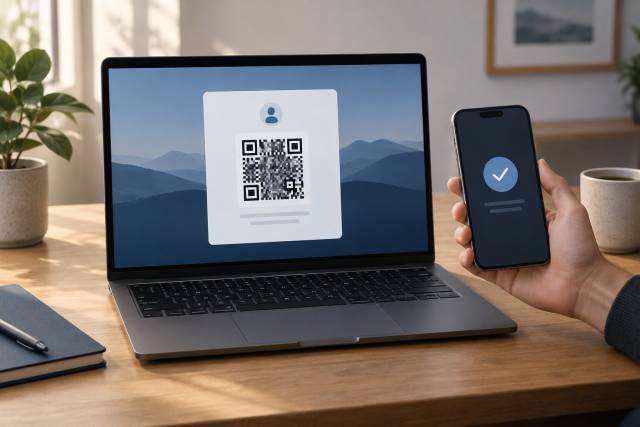
A passkey saved in your iPhone's iCloud Keychain can sign you in to a website on a Linux computer without copying the private key to Linux. The website and browser must offer a passkey from a nearby device option. You then scan a QR code with your iPhone, approve the request on the phone, and let the devices establish proximity over Bluetooth. Apple's cross-device instructions describe this flow.
This is useful if you have already set up passkeys on your iPhone and now use Linux as your desktop. It is a sign-in session, not a way to export iCloud Keychain to Linux. Browser, site, and Linux Bluetooth support still determine whether the QR option appears and completes.
Try the normal QR-code flow
- On Linux, open the real website in an up-to-date Chromium-based browser and choose its passkey sign-in option. Check the domain before continuing.
- If a prompt offers several authenticators, select Other options, Use another device, or Passkey from nearby device. The wording varies. Choose the phone or QR-code path, not a local passkey store, if the credential is on your iPhone.
- Keep the phone close to the computer with Bluetooth enabled on both devices. Unlock the iPhone, open its Camera, and scan the QR code shown by the browser. Follow the iPhone prompt and approve with Face ID, Touch ID, or the device passcode.
- Wait for the browser to finish the website sign-in. Close an unexpected or stale QR prompt and start again from the site's sign-in page.
Apple says iCloud Keychain and two-factor authentication must be enabled to use its passkeys. If the account's passkey is missing on the phone, check the Passwords app first. A QR code cannot retrieve a passkey that was saved to a different manager or a different account.
If the browser only asks for a USB security key
The USB prompt is an authenticator choice, not a request to plug in the iPhone. First look for Other options in the website or browser dialog. Some sites start a security-key-only request, or use a passkey request that exposes only locally available credentials. In that case, the browser cannot invent a phone option. Try the site's normal sign-in chooser and a current browser before changing account settings.
Chromium-based browsers can show the cross-device QR flow. Google's Chrome passkey guidance says a QR code may appear when no passkey is found locally. This does not guarantee that every Chromium build, distribution package, website, or Bluetooth adapter supports the same flow. Google Password Manager passkeys synced into Chrome are a separate store from iCloud Keychain.
Firefox on Linux has a different path. Mozilla's Linux WebAuthn tracking explains why its native Linux prompt can offer only a USB authenticator. Mozilla still tracks hybrid transport for Linux, the mechanism behind the phone QR flow. Firefox behavior can change with versions and passkey-manager integrations. If the native Firefox dialog offers only USB, try a current Chromium browser for this particular iPhone sign-in rather than assuming that the passkey is broken.
If the QR code appears but the handoff stalls
Check the simple causes in order:
- Keep the iPhone unlocked and nearby. Turn Bluetooth on in iPhone Settings and on Linux. A working internet connection on both devices is also needed to finish the website sign-in. The QR code alone does not prove proximity.
- Verify that the Linux Bluetooth adapter is enabled and recognized by the system. If you use a desktop without Bluetooth, add a supported adapter before repeating the phone flow.
- Check whether the browser or desktop denied a Bluetooth permission request. Reopen the sign-in prompt after granting the relevant permission; a private window or locked-down browser policy may behave differently.
- Update the browser, phone, and Linux Bluetooth stack through their normal update channels. Restart a stuck browser and toggle Bluetooth once before attempting the flow again.
- Test a second website that supports phone passkeys, if you have one. A single site's authenticator choices may be narrower than the browser's general capability.
Do not disable two-factor authentication, turn off device locking, or paste an account password into an unknown tool to make this flow work. Avoid experimental browser flags and system Bluetooth changes unless you understand their effect and can restore them.
What about Linux bridge tools?
Community projects may offer a workaround for particular browser and Bluetooth combinations. They are not the Apple-supported QR workflow and may require privileged system changes or access to browser sign-in traffic. Read their source, compatibility notes, maintenance status, and rollback instructions before installing one. Do not treat a project's successful test on one adapter as a universal fix.
If the phone path remains unavailable, use a recovery method already registered with that website: another passkey, a hardware security key, or the site's password and existing second factor. You can also sign in on the iPhone itself. Once back in the account, add a second passkey on a device or manager you trust, and preserve the site's recovery codes. Keep the original iPhone passkey until the new method is verified.