
Development
Use iCloud Photos on Linux: Download and Verify Originals
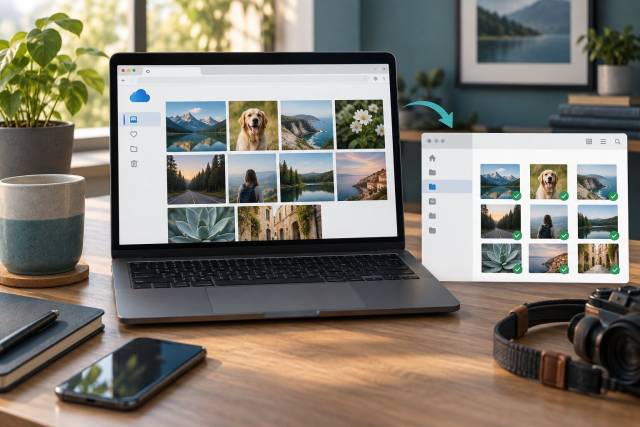
You can use iCloud Photos on Linux at iCloud.com/photos in a current browser. Sign in with your Apple Account, complete Apple's verification, then select and download the photos or videos you need. This is browser access to your library, not an official Linux app that automatically keeps a local folder in sync.
Apple documents iCloud access through a supported web browser and provides native synchronization for its listed platforms (Apple's transfer guide). If your goal is a reliable archive on Linux, plan a repeatable download and verification process instead of expecting the browser's Downloads folder to mirror iCloud.
Start with iCloud.com
- Open
https://www.icloud.com/photos/in a current, supported browser. Check the address before entering account details, especially if you followed a link from a search result or email. - Sign in directly with your Apple Account and complete the verification request on your trusted device. Do not give the verification code to another person or enter it into an unrelated extension.
- Open Photos, choose a small group of items, and use Download. For an archive, open More Download Options and choose Unmodified Originals. Apple's options also include Highest Resolution and Most Compatible, which can yield different formats (Apple's download instructions).
- Save each batch into a dated directory on your Linux computer. Keep the downloaded ZIP files until you have extracted and checked them.
Apple currently documents a selection limit of 1,000 items at a time on iCloud.com. The interface and available download choices can change, so confirm the option shown before a large transfer. Use smaller batches if the browser times out, the download is interrupted, or you need a clear count for verification.
What browser access does and does not do
The web app lets you view, manage, and download items in the iCloud library. It does not mount iCloud Photos as a Linux filesystem or automatically copy new originals to a local directory. A photo visible in the browser may have no local copy at all. Conversely, a downloaded photo will not automatically track later edits or deletions in iCloud.
If the browser cannot show a thumbnail or a download fails, try a smaller batch and a current browser before treating the source file as missing. Check available disk space and whether your download directory is on a local, writable volume. Leave the iCloud library intact while troubleshooting.
The original file may be HEIC and a video may be HEVC. A Live Photo can involve a still image and a short video, so count assets and files separately. Most Compatible is useful for sharing with older applications; Unmodified Originals is the safer archive choice. Keep the original files even if you make JPEG or MP4 working copies later.
Verify a local archive
Use a simple batch log: record the selected date range or album, the item count shown in iCloud, the downloaded ZIP names, and the destination directory. After extracting each batch, check its file count, total size, and any zero-byte files:
find "$HOME/Pictures/icloud-archive" -type f | wc -l
du -sh "$HOME/Pictures/icloud-archive"
find "$HOME/Pictures/icloud-archive" -type f -size 0 -print
Open representative older and newer photos, long videos, and Live Photo pairs. Compare their visible capture dates and resolution with the browser. A ZIP's extraction time may become the filesystem modification time, so use embedded metadata or your photo manager's capture date when checking chronology. Exact file counts may differ from selected asset counts because of paired media or sidecars.
Keep a second copy on another disk and retain the iCloud source until you have checked the full library. A checksum manifest is useful for detecting later damage to your Linux archive, but it cannot prove that every cloud item was downloaded. Maintain your batch log for that completeness check.
When a wrapper or command-line downloader makes sense
The community icloud-electron project currently describes itself as a dedicated Chromium launcher for iCloud services. Its own README says it does not synchronize files or integrate with a Linux file manager. Despite the repository name, its current version is a browser wrapper, not a native Photos sync client. Review its source, update mechanism, browser provenance, and profile storage before using it. It keeps browser session data on disk, which deserves the same protection as any signed-in browser profile. It is not an Apple-supported app.
For repeated large downloads, iCloud Photos Downloader is a separate, unofficial command-line project. Check its current documentation and maintenance status before installing. Its authentication documentation describes account-password and verification flows and optional keyring storage. Avoid putting your primary password in a command line, shell history, script, or public issue. A downloader has a greater account and filesystem trust surface than using Apple's site in your regular browser.
Apple's app-specific password guidance discusses third-party access to services such as Mail, Contacts, and Calendar. Do not assume an app-specific password can authenticate an unofficial Photos downloader; follow the particular project's documented method and decide whether you trust it with the access it requests. Never share your account email, password, session cookies, or verification codes in troubleshooting logs.
Choose the path that matches the job
| Need | Practical choice |
|---|---|
| View or download a few items | iCloud.com in a current browser |
| Archive a library on Linux | Batches of unmodified originals plus a verified second copy |
| Repeated unattended downloads | Evaluate a maintained third-party downloader and its credential storage |
| Automatic local filesystem sync | Consider a service with a supported Linux client; iCloud.com and browser wrappers do not provide it |
If you want to import media directly from the phone instead, first check whether full originals are stored on it. Apple notes that Optimize iPhone Storage can leave originals in iCloud (Apple's missing-import explanation). A USB import of that device is not automatically a complete iCloud archive.