
Development
Import iPhone Photos to Linux Over USB Without Losing Originals
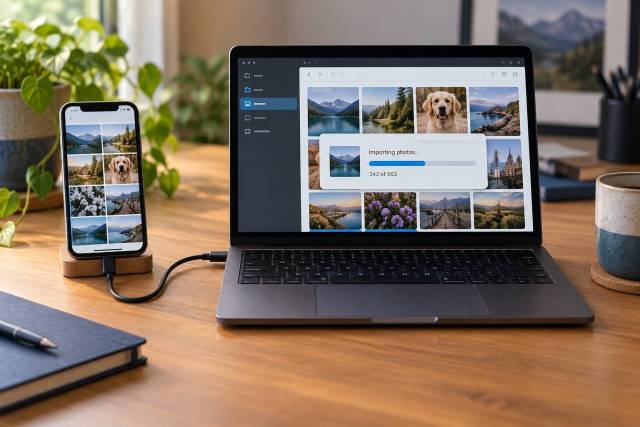
To import iPhone photos to Linux, connect the unlocked phone with a data-capable USB cable, approve its trust prompt, then copy the DCIM files into a new folder. Check the copy before removing anything from the phone. If iCloud Photos keeps only optimized versions on the device, download the originals first or use iCloud.com instead.
Apple documents cable imports for Mac and Windows, not a native Linux photo importer. The Linux steps below use community-maintained tools. I have checked the documented commands and their non-destructive behavior, but have not run them against every iPhone and desktop combination.
Prepare the iPhone and cable
- Use a cable that carries data, not a charging-only cable. Connect directly to the computer if a hub is unreliable. Apple recommends trying another cable and port when a device is not recognized (Apple's connection checklist).
- Unlock the iPhone. When Trust This Computer? appears, approve it on the phone and enter its passcode. Trust gives that computer access to device content, so use a computer you control (Apple's trust explanation).
- In Settings → Apps → Photos → Transfer to Mac or PC, choose Keep Originals for an archive of the files as captured. Depending on iOS version, Photos may appear directly in Settings. Automatic can provide compatible copies during transfer, but conversion can change format and complicate comparisons. If you need JPEG or H.264 later, convert a separate working copy.
- If Optimize iPhone Storage is enabled, some full-resolution items may be in iCloud rather than on the device. Apple says to use Download and Keep Originals before a cable import when space allows (iCloud Photos settings, missing import items).
Do not turn off iCloud Photos or delete phone media as a way to make a USB import work. Those actions can affect the synchronized library.
Copy photos through the desktop file manager
On a mainstream GNOME or KDE desktop, open the file manager after trusting the computer. Look for the iPhone under Devices or Other Locations, then look for DCIM. Select a small batch first and copy, not move, into a new folder such as ~/Pictures/iphone-import-2026-09-28/. Keep the phone unlocked while the copy runs. A photo manager's Import action is another interface to try, but check whether it offers a delete-after-import option and leave that option off.
The phone is not a general-purpose USB disk. Desktop integration may expose the camera through a photo-transfer interface or present an Apple media mount. Available folders and import behavior vary by distribution and iOS release. If DCIM is missing, use the pairing check below before changing packages or permissions.
Diagnose the connection with libimobiledevice
Install your distribution's libimobiledevice and usbmuxd packages if its file manager does not detect the phone. Package names vary, so use your distribution's package manager. With the unlocked phone connected, run:
idevice_id -l
idevicepair validate
The first command should list a device identifier. The second checks whether this computer has a valid pairing (libimobiledevice's idevicepair manual). These commands inspect the connection; they do not copy or delete photos. If pairing fails, reconnect, unlock the phone, respond to its trust prompt, and retry. Apple documents Reset Location & Privacy as a way to make a missing trust prompt return, but that resets other location and privacy choices too, so reserve it for persistent failures (Apple's trust troubleshooting).
ifuse can mount iPhone-accessible media when the desktop file manager does not. Its project documentation covers installation and mounting. If you use it, copy from its DCIM directory into a separate local folder and unmount afterward. Do not assume it provides every photo in an iCloud library. Start with the file manager because it avoids a second mount path and reduces the chance of copying the wrong folder.
Choose originals or compatible files
Keep Originals preserves the source format: many recent photos are HEIC and videos may be HEVC. A Live Photo may arrive as a still image plus a short video. Editing sidecars and metadata deserve inspection too. If your Linux viewer cannot display a file, that does not mean the copy is damaged. Try a viewer with the needed codec, or make a JPEG/H.264 derivative while keeping the original.
Automatic may make an import easier for software that expects JPEG or H.264, but it is a compatibility path, not the best archival choice. Do not mix two import modes in the same destination folder: the converted file and its original may have different extensions and sizes, making duplicates harder to identify.
Verify the copy before deleting anything
In the destination folder, count files, check total size, and inspect a range of dates. These local commands do not alter files:
find "$HOME/Pictures/iphone-import-2026-09-28" -type f | wc -l
du -sh "$HOME/Pictures/iphone-import-2026-09-28"
find "$HOME/Pictures/iphone-import-2026-09-28" -type f -size 0 -print
Open several older and newer photos, a long video, and both parts of a Live Photo if you have one. Compare the number of items in the selected phone batch with the copied batch; extra files may be sidecars or Live Photo videos, while missing files may still be in iCloud. File modification times can reflect the transfer, so inspect embedded capture dates in a photo manager before concluding that metadata was lost. Keep a second copy on another disk before considering any deletion. A checksum manifest can later confirm that the backup matches the local files:
find "$HOME/Pictures/iphone-import-2026-09-28" -type f -print0 | sort -z | xargs -0 sha256sum > "$HOME/Pictures/iphone-import-2026-09-28.sha256"That manifest covers the local copy, not the phone's inaccessible original hashes. It is a baseline for later integrity checks, not proof that the USB import contained every item.
If USB still does not work
Try another data cable and port, keep the phone unlocked, and verify pairing before retrying a small batch. If photos are present in iCloud but absent from DCIM, download selected unmodified originals from iCloud.com in batches and verify those downloads separately. That avoids treating a partially cached iPhone as the complete library.
For unrelated iPhone/Linux authentication trouble, see my iOS passkeys on Linux troubleshooting guide. Its Bluetooth steps address passkeys, not USB photo import.