
Development
iOS Passkeys on Linux Not Working? Fix It Fast
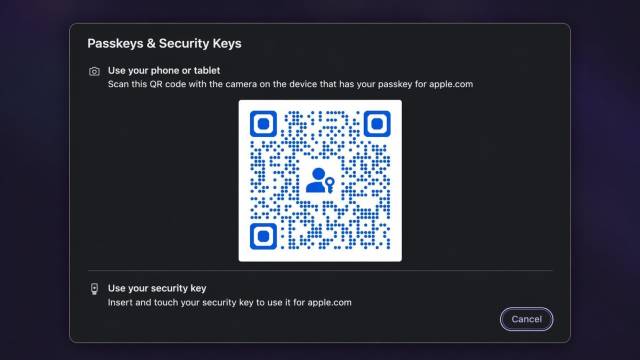
iOS passkeys on Linux can fail even when Bluetooth works normally. If the browser shows a QR code but your iPhone never completes the nearby-device flow, check the BlueZ controller mode first.
The usual fix is to set ControllerMode = dual in /etc/bluetooth/main.conf, restart Bluetooth, and retry with both devices unlocked and nearby.
Quick fix for an iPhone passkey on Linux
Open the BlueZ configuration:
sudo nano /etc/bluetooth/main.confSet the controller mode:
ControllerMode = dualRestart Bluetooth:
sudo systemctl restart bluetoothThen retry the passkey prompt in a current browser. This setting keeps both classic Bluetooth and Bluetooth Low Energy available. Cross-device passkey proximity depends on Bluetooth Low Energy.
Why iOS Passkeys on Linux Usually Don’t Work
Passkeys on iOS rely on Bluetooth + WebAuthn + device proximity. Your Linux machine needs to talk nicely to your iPhone over Bluetooth, and that’s where things usually fall apart.
In practice, Linux almost works—but not quite. The missing piece is how Bluetooth is configured.
This isn’t just a one-off issue—others have hit the same problem with iOS passkeys on Linux (see discussion)
Step 1: Install BlueZ (If You Somehow Don’t Have It)
Most distros already ship with it, but just in case:
sudo apt install bluezOr equivalent for your distro.
If Bluetooth works at all on your system, you probably already have this. Still worth verifying.
Step 2: Fix Bluetooth Mode (This Is the Real Trick)
Open this file:
sudo nano /etc/bluetooth/main.confFind this line:
#ControllerMode = dualUncomment it and make sure it looks like this:
ControllerMode = dualWhy this matters
Linux Bluetooth can operate in different modes:
bredr→ classic Bluetoothle→ low energydual→ both (what you want)
Passkeys need BLE (Bluetooth Low Energy) for proximity detection. If your system isn’t in dual, your iPhone basically pretends your Linux machine doesn’t exist.
Step 3: Next, Restart Bluetooth
After saving the config:
sudo systemctl restart bluetoothOr just reboot if you’re feeling old-school.
Step 4: Then, Use a Supported Browser
This part is simpler:
- Firefox ✅
- Chrome ✅
- Chromium-based browsers ✅
If you’re using Brave, you’re good. That setup works fine.
Avoid weird experimental browsers unless you enjoy pain.
Step 5: Turn On Bluetooth Everywhere
This sounds obvious, but it’s the #1 “why isn’t this working” issue.
Make sure:
- Bluetooth is ON in Linux
- Bluetooth is ON in your iPhone
- Your iPhone is unlocked when prompted
No pairing required. Just proximity.
Step 6: Finally, Test It
Go to a site that supports passkeys (Google, GitHub, etc.).
When prompted to sign in:
- Choose passkey
- Select “Use a nearby device” (or similar wording)
- Your iPhone should pop up a prompt
- Face ID / Touch ID → done
If it works, congrats—you just made Linux behave like a normal OS.
Common Gotchas when Troubleshooting iOS Passkeys on Linux
❌ Nothing happens on your iPhone
- Check
ControllerMode = dual - Restart Bluetooth again
- Make sure devices are close
❌ Browser doesn’t show passkey option
- Try Chrome or Firefox first
- Some sites are picky
❌ Bluetooth works but passkeys don’t
- You likely have LE disabled (again:
dualfixes this)
Reality Check
Linux support for passkeys isn’t “plug and play” yet. It’s more like “plug, tweak config, restart service, whisper a prayer.”
By the way, if you like simple, no-dependency fixes like this, you’ll probably enjoy how I block distractions on Linux using a tiny bash script in FocusPocus: A Tiny Bash Spell to Keep You From Doomscrolling on Linux.
That said, once it’s working—it’s solid.
Final Thoughts on How to Fix iOS Passkeys on Linux
Once configured, iOS passkeys on Linux work reliably and make passwordless login actually practical.
This setup turns your Linux machine into a fully capable passkey client using your iPhone as the authenticator. No extra apps. No hacks. Just fixing what Linux forgot to enable by default.
Honestly, the hardest part is knowing that one config line exists.
Now you do.