
Development
Fix iPhone Personal Hotspot on Linux
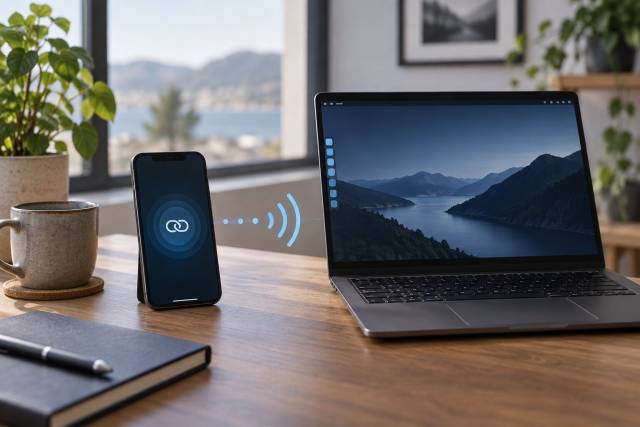
An iPhone can share its cellular connection with a Linux computer using Wi-Fi, USB, or Bluetooth. Start with Wi-Fi: it needs no extra Linux phone software and makes it easiest to separate a hotspot problem from a cable or Bluetooth problem. Apple's Personal Hotspot guide describes all three connection types. Availability, device limits, and charges depend on your carrier and plan.
Before troubleshooting Linux, confirm that cellular data works on the iPhone with Wi-Fi turned off. An iPhone Personal Hotspot does not rebroadcast a Wi-Fi connection. Open Settings > Personal Hotspot (or Cellular > Personal Hotspot) and turn on Allow Others to Join. Leave that settings screen open while the computer connects.
Personal Hotspot versus Instant Hotspot
Apple's Instant Hotspot helps eligible Apple devices on the same Apple Account or Family Sharing group discover and join without typing the Wi-Fi password. Linux does not get that Apple-account convenience. Treat the iPhone as a regular hotspot: enable Allow Others to Join and enter the password or use a cable. Apple distinguishes the two paths and specifically directs other devices to Wi-Fi, USB, or Bluetooth.
Connect over Wi-Fi first
Open your Linux desktop's Wi-Fi menu, select the network with the iPhone's device name, and enter the password shown in Settings > Personal Hotspot. If the name is absent, keep the iPhone unlocked on that screen, toggle Wi-Fi on the Linux computer, and scan again. If an older adapter cannot see or join the hotspot, try Maximize Compatibility on the iPhone. Apple notes this can reduce performance and Wi-Fi security, so turn it off again if it does not help (Apple's troubleshooting steps).
On a NetworkManager-based desktop, these read-only commands show whether the adapter sees the phone and whether a connection is active:
nmcli device status
nmcli device wifi rescan
nmcli device wifi list
nmcli connection show --active
The rescan only requests a fresh access-point scan. If the phone's network appears but a saved connection loops, open the desktop network settings and disconnect that hotspot, then reconnect with the password currently shown on the phone. For a named NetworkManager profile, nmcli connection down id "iPhone name" followed by nmcli connection up id "iPhone name" deactivates and reactivates it; substitute the actual profile name from nmcli connection show. Avoid deleting the profile or resetting all network settings as a first step. These commands follow the NetworkManager reference.
If Linux reports that Wi-Fi connected but pages do not load, check the iPhone's cellular data and data allowance. Disconnect a competing VPN temporarily if your policy allows it, and see whether the computer received an IP address in its network settings. A captive portal or carrier restriction cannot be fixed by changing the hotspot password.
Use USB when Wi-Fi is unreliable
Turn on Allow Others to Join, connect the unlocked iPhone with a data-capable USB cable, and accept Trust This Computer on the phone if prompted. Check nmcli device status for a new wired or Ethernet-like device and select its connection in the desktop network menu. Linux USB tethering depends on the distribution's iPhone USB driver and device-pairing services; Apple documents the cable and trust steps but does not provide a Linux-specific driver stack.
If nothing appears, try another data cable and USB port, unlock and reconnect the phone, and verify whether the computer detects the USB device at all. A charge-only cable cannot tether. If pairing fails, use your distribution's supported libimobiledevice and usbmuxd packages and check its logs before installing third-party scripts. The libimobiledevice pairing tool can validate a pairing, but do not unpair or reset trust records without a reason.
USB usually gives a steadier link and charges the phone, though it requires a cable and working device support. Unplugging reverses it. Check the active network after plugging in: your computer may silently switch from a known Wi-Fi connection to metered cellular data.
Try Bluetooth for a low-bandwidth fallback
Enable Allow Others to Join, then open iPhone Settings > Bluetooth and leave it visible while pairing from Linux Bluetooth settings. Confirm matching pairing codes on both devices. If your Linux desktop exposes a Bluetooth network or Personal Area Network option, connect through that profile. Bluetooth tethering depends on the adapter and desktop's PAN support, and is normally slower than Wi-Fi or USB. Pairing alone does not prove that the network service is connected (Apple's connection steps).
When a Bluetooth link will not form, remove the stale pairing on both devices and pair again only after checking that Bluetooth networking is supported by your Linux setup. If you need speed or reliability, return to Wi-Fi or USB.
Keep the connection deliberate
Use a strong hotspot password and turn off Allow Others to Join when finished. Personal Hotspot consumes cellular data and phone battery; USB can keep charging while still using your plan. Some carriers restrict tethering, charge extra, or cap connected devices. If the hotspot switch is missing or disabled, verify cellular data and ask the carrier about your plan before changing Linux settings. Apple recommends network-settings reset only after simpler checks; that reset also removes saved Wi-Fi, cellular, VPN, and APN settings.