
Development
Move Files Between an iPhone and Linux Without AirDrop
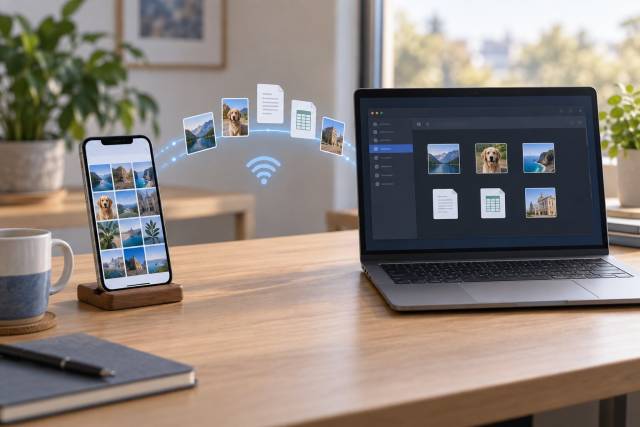
Apple's AirDrop is for nearby Apple devices. For an iPhone and a Linux computer, I would start with LocalSend on both devices. It transfers over the local network without uploading the file to a cloud service. Keep a USB cable as the fallback when the network blocks device discovery. Neither option reproduces AirDrop's Apple integration exactly.
Quickest path: LocalSend on the same network
Install LocalSend from the project's listed App Store and Linux packages. Put the iPhone and computer on the same Wi-Fi or LAN, open the app on both, and grant Local Network access when iOS asks. On the sending device, select a small test file, choose the receiving device, then accept the transfer on the receiver. Check its destination folder before trying a large batch.
LocalSend uses HTTPS between devices and does not need an internet connection or third-party server. That keeps files off a cloud provider, but another device on the LAN can potentially discover the app, so confirm the receiving device name and accept only expected transfers. The receiving app must be available while the transfer runs; do not count on iOS completing a large transfer after you leave the app.
If the devices do not appear, confirm that both are on the same network rather than separate guest or isolated Wi-Fi networks. The LocalSend setup guide calls out router AP isolation and incoming TCP and UDP port 53317. Allow that port for LocalSend on the trusted local network if your Linux firewall blocks it. Do not turn off the entire firewall. Reopen the iPhone app and check Settings > Privacy & Security > Local Network if you denied access earlier.
Other transfer paths
| Method | Best use | Limits and trust boundary |
|---|---|---|
| LocalSend | Quick, two-way local transfer | Needs reachable devices on the same LAN and an active receiver. Local link speed and free storage determine practical large-file performance; check before sending a huge video. |
| KDE Connect | File sharing alongside its other paired-device features | Pair on the same LAN and approve the device. Its iOS app cannot run continuously like a desktop daemon, so keep it in the foreground while transferring. |
| USB with ifuse | A cable fallback for camera media or supported app documents | No LAN required, but USB pairing grants this computer access to exposed content. It does not expose every file in the iPhone's Files app. |
| iCloud shared link | Sharing across networks without both devices present | Uses an internet connection and Apple's cloud. Anyone who receives a public link may be able to pass it on; check the sharing settings, available storage, and upload limits. |
KDE Connect's broader feature set may suit a paired desktop, but its iOS project notes explain the background limitation. New iPhone/Linux companion projects may add integration, but check their current release, source, permissions, and maintenance before trusting them with phone data. An issue's proposed iphone-link reference currently does not resolve to a public repository, so it is not a tested recommendation here.
USB fallback for accessible files
Connect the unlocked iPhone with a data-capable cable, accept Trust This Computer on the phone, and use your distribution's current libimobiledevice, usbmuxd, and ifuse packages. The ifuse documentation covers mounting the camera media area and listing apps that expose file-sharing documents. A typical mount is:
mkdir -p "$HOME/iphone-media"
ifuse "$HOME/iphone-media"
Copy the files you need, then unmount with your desktop's eject action or fusermount -u "$HOME/iphone-media" where supported. For an app's shared documents, inspect ifuse --list-apps and follow the installed version's ifuse --help for its app-document option. This path is narrower than full iPhone storage access. For photos and videos, the camera-media import route may be easier; see my USB photo import guide. If the phone only charges, try another cable or port and confirm the trust prompt before changing software.
Fix one-way or stalled transfers
First send one small file in each direction. If Linux can receive but the iPhone cannot, keep LocalSend open on the phone, confirm its Local Network permission, and check free space. If the iPhone can receive but Linux cannot, inspect the Linux firewall rule for LocalSend and make sure its destination folder is writable. In either direction, verify the devices are on the same reachable LAN; guest Wi-Fi and AP isolation often block discovery.
If the devices see each other but a large transfer stalls, retry a small file, leave the iPhone app visible, keep both screens awake, and verify space on the receiver. Restart the app on both ends and retry one file before repeating a batch. For KDE Connect, recheck pairing on both devices and keep the iOS app open. Switch to USB for accessible files when the network remains unreliable. A shared link is useful only if its cloud upload and access permissions fit the file's sensitivity.