
Development
Move Safari Bookmarks and Tabs to a Linux Browser
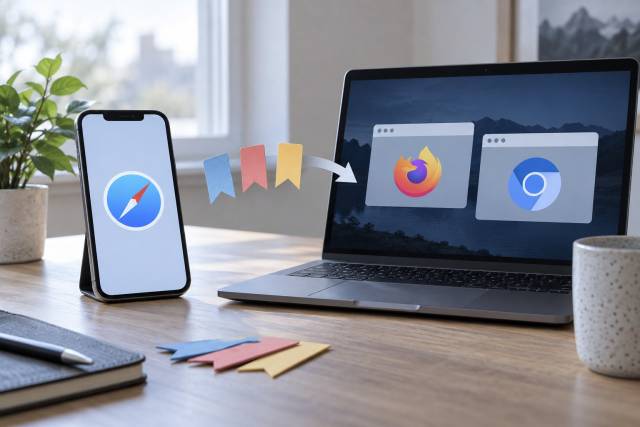
You can move Safari bookmarks from an iPhone into Firefox or Chromium on Linux. You cannot turn those browsers into Safari's iCloud Tabs or Handoff clients. The practical approach is a one-time bookmark export, then use the same cross-platform browser on the phone and computer for ongoing bookmark and tab sync.
Which Safari data is which?
| Safari data | Apple's sync | Linux option |
|---|---|---|
| Bookmarks and folders | iCloud syncs them across iPhone, iPad, and Mac; iCloud for Windows supports bookmarks on Windows | Export bookmarks on iPhone and import their HTML file into Firefox or Chromium. This is a snapshot, not automatic Safari sync. |
| Reading List | iCloud keeps it among Apple devices | Save important pages as ordinary bookmarks or share individual links to the Linux browser. Offline Reading List copies do not transfer as browser bookmarks. |
| History | iCloud syncs Safari history on Apple devices | Current iPhone Safari export can include history, but a Linux browser's importer may not accept it. Use the destination browser on both devices for future history sync. |
| Open tabs and Tab Groups | iCloud Tabs works between Apple devices | Share individual URLs or bookmark a set. Use Firefox or Chrome on both devices for future synced tabs. |
Apple's iCloud Safari guide lists bookmarks, Reading List, history, open tabs, Tab Groups, and profiles, but its device support is iPhone, iPad, and Mac, with Windows bookmark support. It does not list Linux Safari or a direct bridge into Firefox or Chromium.
Export bookmarks from the iPhone
On current iOS versions, open Settings > Apps > Safari > Export. Select Bookmarks only, choose the desired profile scope, and tap Save to Downloads. Apple's export instructions say the result is a ZIP file in Downloads. Transfer that file to Linux using a trusted method such as LocalSend or iCloud Drive. Extract the ZIP locally and locate the bookmarks HTML file; Apple's developer format documentation identifies its Netscape bookmarks format.
If you choose to export history or passwords too, the archive contains more sensitive information. The simplest bookmark migration is to select only bookmarks. Apple warns that exported browsing data is not encrypted. Keep the ZIP private, do not upload it to a conversion website, and delete it from shared locations once import is verified. Keep a secure backup until you know the migration succeeded.
In Firefox on Linux, open the bookmarks library, choose Import and Backup > Import Bookmarks from HTML, and select the extracted file. Mozilla documents the HTML import path. In Chrome or a compatible Chromium build, open the browser's bookmark manager or Import bookmarks and settings and select the HTML file; see Google's import guide. Inspect folders and sample links before deleting the export. Re-importing later can create duplicates, so treat it as a migration rather than a sync loop.
Keep future bookmarks and tabs together
For Firefox, install Firefox on the iPhone, sign in to the same Mozilla Account as Firefox on Linux, and enable Bookmarks, History, and Open Tabs as desired. Mozilla documents these Firefox for iOS sync categories. New Safari bookmarks and tabs will not automatically enter Firefox; use Firefox on the iPhone for the sites you want synchronized.
For Chrome, sign in to Chrome on both devices with the same Google Account and enable bookmark and history/tab sync in the account settings. Google's Chrome sync guide distinguishes bookmarks from the separate history and tabs setting. Chromium builds may omit Google account sync, so verify that your specific Linux browser supports the service before relying on it. Switching the iPhone's default browser can help route future links to the chosen browser, but it does not import Safari's existing data by itself.
For a few open Safari tabs, share each URL or bookmark it, then open it on Linux. Reading List items are best reviewed individually and saved into the new browser's reading list or bookmarks. No third-party extension should need your Apple Account password to copy a bookmark HTML file. Safari's iCloud Tabs, Handoff, and offline Reading List behavior still require Apple's supported ecosystem; a one-time export cannot reproduce them.